1
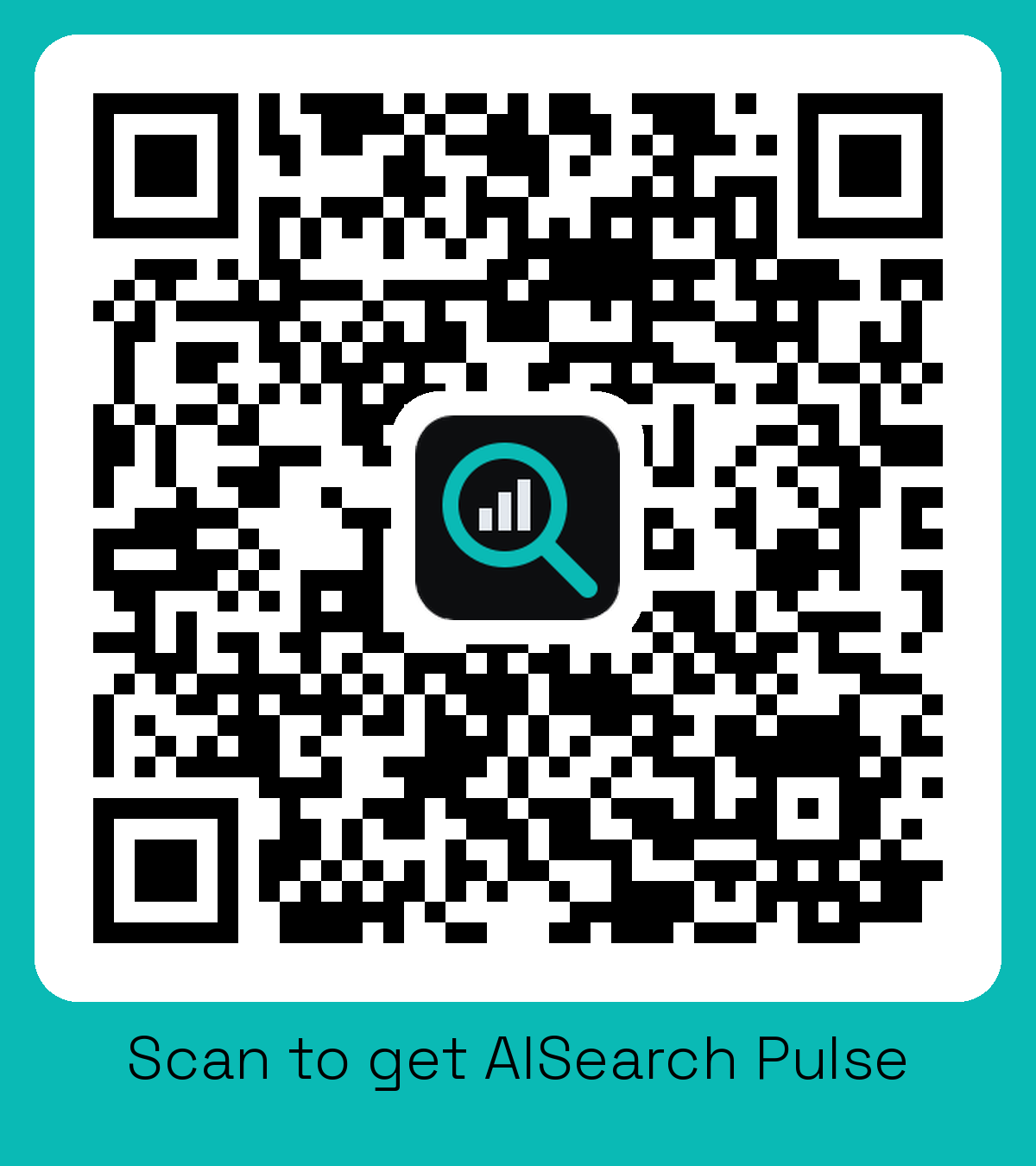
Scan the QR code.
Point your phone camera at the AISearch Pulse QR code. It opens the secure Stripe payment page for Pulse straight away, with nothing to type or search for. On a computer, press the Buy button on the Pulse page instead.
AISearch Pulse
Pulse is not in the Chrome Web Store yet, so for now you add it to Chrome yourself. It takes about ten minutes and these nine steps show every click.
1
Point your phone camera at the AISearch Pulse QR code. It opens the secure Stripe payment page for Pulse straight away, with nothing to type or search for. On a computer, press the Buy button on the Pulse page instead.
2
The payment page shows AISearch Pulse at $99 AUD for the year, with no GST charged. You pay with your card, in Australian dollars. Stripe handles the payment, so AISearch Global never sees your card details.
3
Within a minute or two an email lands in your inbox with your licence key, which looks like AISV-XXXX-XXXX-XXXX-XXXX, and a link to download the Pulse file. Keep that email, because you need the key in step 8.
4
The file is a zip: one folder squashed down so it downloads quickly. It saves to your Downloads folder. If Chrome asks whether to keep it, choose Keep.
5
Windows: right-click the file, choose Extract All, then Extract. Mac: double-click it. Then move the folder somewhere permanent, like Documents. Do not delete it later, because Chrome reads the extension from that folder every time it starts.
6
Type chrome://extensions in the address bar and press Enter. At the top right, turn on Developer mode. It is Chrome’s standard way to add an extension from a folder, and it does not change your account or other extensions.
7
Click Load unpacked and pick the Pulse folder, the one with a file called manifest.json directly inside it. AISearch Pulse now appears in your list of extensions.
8
Click the puzzle-piece icon at the top right of Chrome and pin AISearch Pulse. Click the Pulse icon, choose Already bought? Enter your licence key, paste your key and click Activate. One key works in up to 3 of your browsers.
9
Open any page on your own website, click the Pulse icon and start a scan. You get a score and a ranked fix list, so you know what to fix first. Pulse only looks at the tab you press Scan on, and Chrome does not ask for permission each time.
Chrome shows a few extra messages when you add an extension yourself instead of from the Chrome Web Store. Here is what each one means and what to do. Wondering about the folder itself? Here is how to check it. Stuck at any point? Press Ask a question to talk to the AISearch Global AI assistant.
manifest.json directly inside it.